Custom Apps
Peergos Apps are a way to extend the Peergos platform to add custom functionality
When an app is run, its HTML5 assets are rendered in a unique hostname (sha256(app path).$peergos-domain) of the peergos server, e.g. https://bciqjmdntozhuanb2c3ka5vtqpux75j5symbyomhkpnilndngl6iaspy.peergos.net. The app domain is isolated from the main peergos domain in a separate OS process, and from other apps. The app domain is also locked down with CSP http headers so it cannot make any external requests which could be used to exfilrate data [0]. Requests made by the app are intercepted in a service worker and translated to post messages which are sent to the main peergos tab. That is where the requests are checked for validity and permissions are enforced. By default, an app has no permissions and can only read its own assets. Most permissions are declared in the app's manifest, but access to folders in the user's drive is granted at runtime instead: the app asks, the user chooses a folder and approves it in a dialog, and they can revoke it at any time from the app's details on the Launcher (see Granted folders). Running an app also doesn't reveal its assets to the server - they are served via a service worker and post messages to the main peergos tab, and thus benefit from all the existing privacy protections in Peergos.
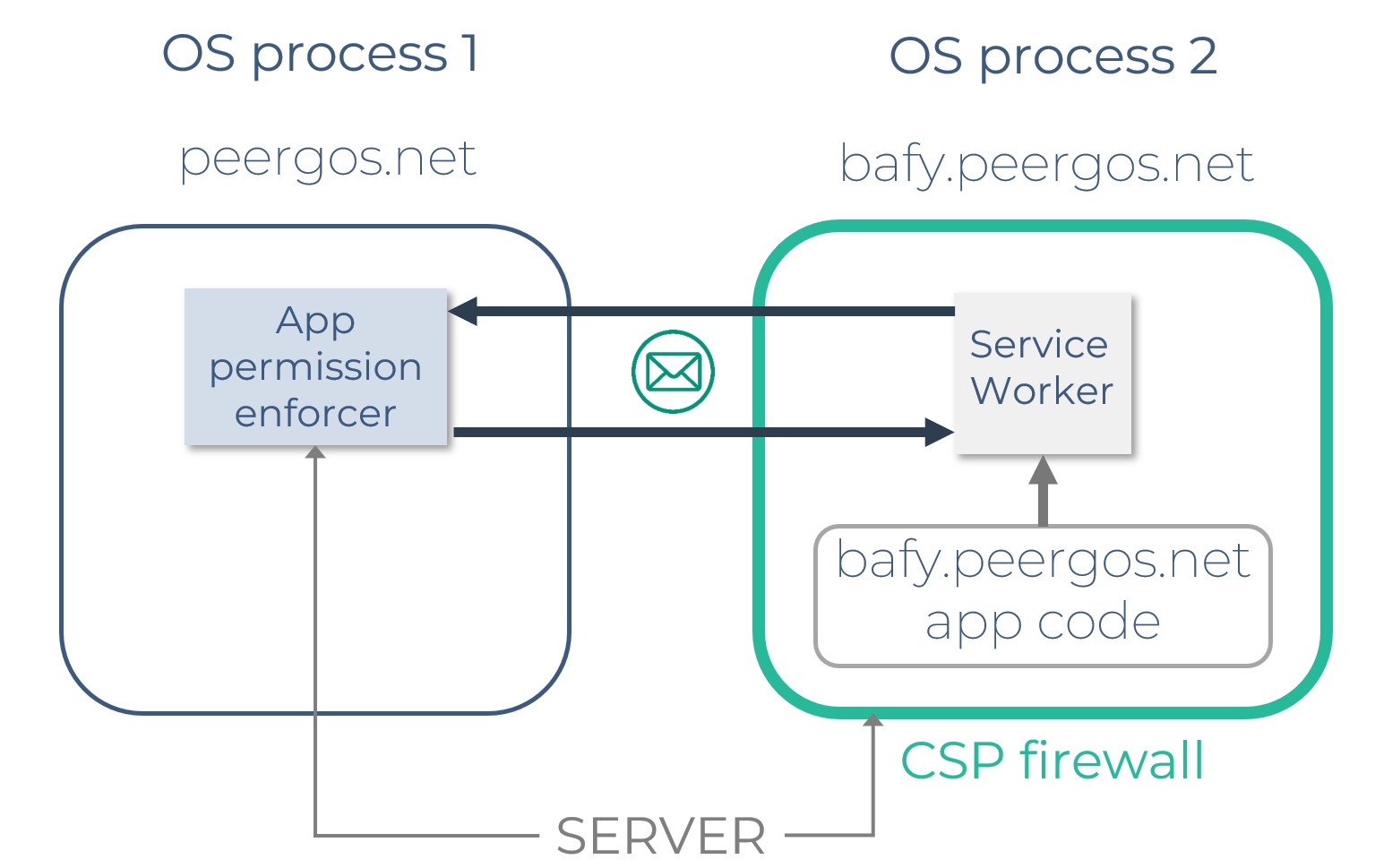
[0] This is currently not true until browsers implement webrtc CSP which blocks any webrtc connections. Browser issues for this are firefox, Chrome. So only install apps from authors you trust for now, unless they don't require any permissions which is safe.
Use cases:
-
Media Player App. The App should appear as a context menu item when a media file is selected on the Drive screen, or open straight onto the user's music folders from the Launcher, without asking for them again on every run.
-
Word Processor App. As well as having read access to a document file, the App should be able to overwrite the contents of the document file.
-
Image Gallery App. The App should be able to read image files from the selected Folder tree, and keep showing a photos folder the user chose once, including photos added to it later.
-
White Board App. App will appear on the Launcher page. App can create, retrieve, update, append and delete files within it’s own App space.
Example apps
You can find some example apps here: https://github.com/Peergos/example-apps
Anatomy of a Peergos App
An app consists of plain HTML/Javascript/CSS packaged in a folder
The App is described by a mandatory manifest file called peergos-app.json
App Folder Structure
asssets - Must contain index.html as an entry point
data - Files under the control of the App
peergos-app.json - manifest file
Peergos-app.json
This file describes the App. It also indicates the permissions required for the App to function
Fields:
schemaVersion - Currently always set to 1
displayName - Used for display. Limited to 25 characters. (alphanumeric plus dash and underscore).
version - Format of Major.Minor.Patch-Suffix. Example: 0.0.1-initial
description - Text. Length must not exceed 100 characters
author - Text. Length must not exceed 32 characters
fileExtensions - Array of target file extensions e.g. ["jpg","png","gif"]
mimeTypes - Array of target mime types e.g. ["application/zip","application/vnd.peergos-todo","video/quicktime"]
fileTypes - Another way to target files e.g. [“image”, “video”, “audio”, “text”]
launchable - Indicates App can be opened on the Launcher page
folderAction - Indicates App acts on folders
libraryFolders - Optional, for a folderAction App. Indicates the App can also be launched from the Launcher with no folder, to open onto the folders the user has granted it. Without it, launching a folderAction App from the Launcher asks for a folder first
appIcon - filename of image to use as icon on launcher page. Must be available in assets folder
template - Various templates exist to make certain App types easier to develop
Possible values:
"messaging" - App is preconfigured for sharing. Multiple instances of App can be installed. Membership to the App is provided by a "Share" context menu item on the launcher icon.
"messaging-instance" - Same as "messaging", but with the condition that only 1 instance of the App can be installed
tile - Optional. Lets the App draw a live preview of a matching file in the user's newsfeed. See Newsfeed tiles
e.g.
"tile": {"page": "tile.html", "height": 160}
newFileExtensions - Array of files extensions supported by App. Create a placeholder file in assets folder with filename empty.
e.g.
"newFileExtensions": [
	{"extension": "docx", "name": "Microsoft Word"},
	{"extension": "odt", "name": "ODF Text Document"},
],
permissions - see below
Permissions:
STORE_APP_DATA - Can store and read files in a folder private to the app
EDIT_CHOSEN_FILE – Can modify file chosen by user
READ_CHOSEN_FOLDER – Can read contents of folder chosen by user. This covers a folder the App is launched on and the plain folder picker, whose folders are read by absolute path for as long as the App is open
EXCHANGE_MESSAGES_WITH_FRIENDS - Can exchange messages with friends
USE_MAILBOX - Can manage an email mailbox
MANAGE_CONTACTS - Can read and change the user's contacts, in every address book. These are the same contacts Peergos serves over CardDAV
ACCESS_PROFILE_PHOTO - Can retrieve profile photos shared with you
CSP_UNSAFE_EVAL - Allow app to modify its own code via calls to eval()
There is no permission for granted folders. The user approves each one individually when the App asks, so a request for a granted folder never fails for want of a permission in the manifest.
A minimal peergos-app.json file would look like:
{
    "displayName": "App",
    "description": "does something",
    "launchable": true
}
These are already quite powerful, but we plan to add more permissions as we see more use cases.
Peergos REST API
The following endpoints are available:
/peergos-api/v0/data/path.to.file – The data folder is where the App can store and retrieve files
/peergos-api/v0/form/path.to.file – An app can POST a HTML Form and have the results stored in a file of the same name in the data folder.
/peergos-api/v0/chat/ - An app can use the chat api for communication between friends.
If an App is launched from a file/folder context menu item, the path of the file/folder will be available via:
let url = new URL(window.location.href);
let filePath = url.searchParams.get("path");
Dark mode can be detected via the theme param
let theme = url.searchParams.get("theme");// curent values: ['dark-mode', '']
The user's Peergos UI language can be read from the lang param. It is one of the languages Peergos is translated into, and en-GB when the user's language isn't one of them. It can be absent with older Peergos versions, so fall back to navigator.language.
let lang = url.searchParams.get("lang") || navigator.language;// current values: ['en-GB', 'zh-CN', 'de', 'el', 'es', 'fr', 'it', 'ko', 'nl', 'pl']
Drive - The following HTTP actions are supported:
Note: /peergos-api/v0/data/ is only relevant for the App's data folder. It is not necessary when referencing a file in the App's assets folder, the folder the App was launched on, or a folder/file returned by the plain pickers. A granted folder is the exception: it is always addressed through /peergos-api/v0/folder/:grantId/.
GET – Retrieve a resource. Can be a file or folder
Response code: 200 – success.
404, 400 – request failed
Notes:
-
If resource is a folder the response will look like: {files:[“file1.txt”, “file2.txt”], subFolders:[“folder”]}
-
If the file is a media file with a thumbnail, provide ?preview=true to the request to have the thumbnail returned in the Response as a Base64 string.
POST – Create a resource
Response code: 201 – create success. See Response header field: location
200 for POST using form/
400 – request failed
PUT – update a resource
Response code: 201 – create success. See Response header field: location
200 – for update success
400 – request failed
DELETE – delete a file
204 – delete success
400 – request failed
PATCH – append to a file only supported
204 – Append success. See Response header field: Content-Location
400 – request failed
PUT|POST - save a file (launches a dialog)
/peergos-api/v0/save/filename.txt
Request body set to contents of file to save
Response code: 200 or 201 – success.
GET - launch folder picker
/peergos-api/v0/folders
Optional url parameter ?multiple="false" to only select one folder in picker.
Optional url parameters ?write=true and ?persist=true ask for granted folders instead. Either can be given alone: persist=true on its own asks to keep reading the folder, write=true on its own asks to change files in it until the App closes. The picker then tells the user what the App is asking for, with a switch for each, set as requested. The user can change either before approving, so read the flags in the response rather than assuming the request was granted as asked.
Response code: 200 and
- with neither write nor persist, an array of the selected paths, e.g. ["/alice/Photos"]
- with either, an array of grants, e.g. [{"grantId": "b5fq7k2m...", "path": "/alice/Photos", "write": false, "persist": true, "granted": 1757000000000, "stale": false}]
If the user cancels, the array is empty.
GET - launch file picker
/peergos-api/v0/file-picker
Optional url parameter ?extension="jpg, png" to filter files shown in picker.
Response code: 200 and an array containing the selected file path.
Granted folders
A granted folder is a folder in the user's drive that they have chosen, and approved, for the App to use. Ask for one with /peergos-api/v0/folders?persist=true (add &write=true to change files in it). A grant with persist set lasts until the user revokes it, across closing the App and signing in on another device. One without lasts until the App closes. The user sees every remembered grant, and can revoke it, in the App's details on the Launcher.
An App keeping a remembered grant should look for it on start and only ask when there is none:
let grants = await (await fetch('/peergos-api/v0/grants/')).json();
let usable = grants.filter(g => ! g.stale);
if (usable.length == 0)
    usable = await (await fetch('/peergos-api/v0/folders/?persist=true')).json();
let listing = await (await fetch('/peergos-api/v0/folder/' + usable[0].grantId + '/')).json();
GET – list the App's grants
/peergos-api/v0/grants/
Response code: 200 and an array of {grantId, path, write, persist, granted, stale}, empty when there are none. granted is milliseconds since the epoch. path is the folder's current location, for display only: it is omitted when the grant is stale, and must never be used to build a request url.
DELETE – give up a grant
/peergos-api/v0/grants/:grantId
Response code: 204 – success. 400 – request failed
Files in a granted folder are addressed by the grant id and a path relative to the folder, never by absolute path:
/peergos-api/v0/folder/:grantId/path/to/file
Reading and writing a file use the same url and differ only in the method. The urls can be used directly in markup, e.g. <img src="/peergos-api/v0/folder/:grantId/photo.jpg">. Range requests and streaming work as they do for any other file.
GET – Retrieve a file or folder. A folder lists as {files:[], subFolders:[]}, without hidden entries. ?preview=true returns a media file's thumbnail as a Base64 string.
Response code: 200 – success. 404 – not found
PUT – create or overwrite a file. Folders missing on the way to it are created.
Response code: 201 – created, see Response header field: location. 200 – overwritten
POST – create a file with a generated name in the folder at the url
Response code: 201 – created, see Response header field: location
POST with ?type=directory – create a folder
Response code: 201 – created
PATCH – append to a file, with the header X-Update-Range: append
Response code: 204 – success
DELETE – delete a file or folder
Response code: 204 – success
For every method:
403 – a change was attempted through a grant that only allows reading
404 – nothing at the path read, or the grant is stale
400 – unknown grant id, a path containing .. or an element starting with ., or the request failed
When a grant goes stale
A grant follows its folder through renames and moves, but it stops working when the folder's keys change: when the user unshares the folder, or any folder above it, with anyone, moves it in a way that re-encrypts it, or deletes it. From then on /peergos-api/v0/grants/ reports the grant with "stale": true, and requests through it answer 404. This is expected, not a bug, so don't retry. The first time the App uses a stale grant while it is open, Peergos asks the user whether the App may use the folder again. If they agree, the grant keeps its id and every url the App stored keeps working. Otherwise, or if the folder no longer exists, ask for a folder again with /peergos-api/v0/folders, which gives a new grant id.
Chat V0 - The following HTTP actions are supported (see chat-api in example-apps):
See Chat V1 below for a more comprehensive API to support more complex apps
GET – Retrieve a list of all chats created by this App
/peergos-api/v0/chat/
Response code: 200 – success.
Response:
{chatId: chatId, title: title}
GET – Retrieve chat messages
/peergos-api/v0/chat/:chatId
Url Parameters:
from - paging from index
to - paging to index
Response code: 200 – success.
Response:
{messages:[], count: messagesRead}
Contents of messages array:
{type: 'Application', id: messageHash, text: text, author: author, timestamp: timestamp}
{type: 'Join', username: username, timestamp: timestamp}
POST - create chat
/peergos-api/v0/chat/
Request FormData
parameters:
maxInvites - Numeric
Response code: 201 – success.
Response header:
Location - chatId
PUT - send message
/peergos-api/v0/chat/:chatId
Request FormData
parameters:
text - Contents of message
Response code: 201 – success.
Chat V1 - The following HTTP actions are supported (see chat folder in example-apps):
GET – Retrieve chats for current App
/peergos-api/v1/chat/
Response code: 200 – success.
Response:
{chats: [], latestMessages: []}
Contents of chats array:
{chatId: string, title: string, members: [usernames], admins: [usernames] }
Contents of latestMessages array (array entries match corresponding chats array):
{message: string, creationTime: timestamp (localdatetime)}
GET – Retrieve chat messages
/peergos-api/v1/chat/:chatId
Url Parameters:
startIndex - message index
Response code: 200 – success.
Response:
{chatId: string, startIndex: url param from request, messages: array of message json, hasFriendsInChat: number of friends in current chat membership}
Where message is
{ messageRef: string uuid, author: username, timestamp: localdatetime,
type: can be one of RemoveMember|Invite|Join|GroupState|ReplyTo|Delete|Edit|Application ,
removeUsername: set if type is RemoveMember, inviteUsername: set if type is Invite, joinUsername: set if type is Join,
editPriorVersion: set if type is Edit, deleteTarget: set if type is Delete, replyToParent: set if type is ReplyTo,
text: set if type is Application|Edit|ReplyTo, envelope: base64 encoded opaque object,
groupState: set if type is GroupState, attachments : array of attachment json}
Where GroupState is
{ key: payload.key, value: payload.value}
Where attachment is
{fileRef: FileRef json, mimeType: mimeType of file, fileType: audio|video|image, thumbnail: base64 encoded thumbnail for file}
see FileRef description in API call for /attachment response)
DELETE - delete a chat
/peergos-api/v1/chat/:chatId
Response code: 204 – success.
DELETE - delete an attachment
/peergos-api/v1/chat/filePath
Response code: 204 – success.
POST - launch chat group membership modal in order to create a new chat
/peergos-api/v1/chat/
Response code: 201 – success. 400 - failure or modal closed
Response (location response header field):
{chatId: string, title: string, members: [username], admins: [username]};
POST - launch chat group membership modal in order to modify membership of existing chat
/peergos-api/v1/chat/:chatId
Response code: 200 – success. 400 - failure or modal closed
POST - launch gallery modal to display media attachment
/peergos-api/v1/chat/?view=true
Request body:
byte[] of FileRef json (see fileRef field in API call /attachment response)
Response code: 200
POST - download a media attachment
/peergos-api/v1/chat/?download=true
Request body:
byte[] of FileRef json (see fileRef field in API call /attachment response)
Response code: 200
POST - upload a media attachment
/peergos-api/v1/chat/attachment?filename=filename-of-file-to-upload
Request body:
byte[] of attachment's content
Response code: 201
Response (location response header field):
{fileRef: FileRef json, hasMediaFile: boolean, hasThumbnail: boolean, thumbnail: base64 string of thumbnail image,
fileType: file type string ie audio, image, video, mimeType: mimeType string, size: number }
where FileRef is
{path: absolute path to file, cap: opaque capability object, contentHash: hash of file contents}
PUT - send a message
/peergos-api/v1/chat/:chatId
Request body:
to create message
{ createMessage : { text: string, attachments: array of FileRef json} }
to edit existing message
{ editMessage : { text: string, messageRef: uuid of message to edit} }
to reply to an existing message
{ replyMessage : { text: string, attachments: array of FileRef json, replyTo: envelope of message to reply to} }
to delete an existing message
{ deleteMessage : { messageRef: uuid of message to delete} }
Response code: 201
Profile:
GET – Launch the profile modal for the requested Peergos user (must be friend of current user)
/peergos-api/v0/profile/:username
Response code: 200 – success. 400 - failure.
GET – Retrieve the profile thumbnail image for the requested Peergos user (must be friend of current user + app has permission ACCESS_PROFILE_PHOTO)
/peergos-api/v0/profile/:username?thumbnail=true
Response code: 200 – success. 400 - failure.
Response:
{profileThumbnail: base64 data}
Contacts: (see address-book folder in example-apps):
Requires permission MANAGE_CONTACTS. Contacts are vCards (3.0 or 4.0) grouped into address books, and are the same ones a CardDAV client sees, so a change made here reaches the user's phone on its next sync. The address book with id default always exists and cannot be deleted.
GET – List address books
/peergos-api/v0/contacts/
Response code: 200 – success.
[{id: address book id, name: display name}]
POST – Create an address book
/peergos-api/v0/contacts/
Request body: {name: display name}
Response code: 201 – success, with the new address book in the Location header. 400 – failure.
PUT – Rename an address book, creating it if it does not exist
/peergos-api/v0/contacts/:bookId
Request body: {name: display name}
Response code: 200 – renamed. 201 – created. 400 – failure.
DELETE – Delete an address book and every contact in it
/peergos-api/v0/contacts/:bookId
Response code: 204 – success. 403 – the default address book. 404 – not found.
GET – Every contact in an address book
/peergos-api/v0/contacts/:bookId
Response code: 200 – success. 404 – not found.
[{file: filename ending .vcf, vcard: vCard text}]
GET – One contact
/peergos-api/v0/contacts/:bookId/:filename.vcf
Response code: 200 – success, with the vCard as the body. 404 – not found.
PUT – Create or replace a contact. The body is the vCard. Name the file after the vCard's UID, so that a CardDAV client and the app agree on which file a contact is
/peergos-api/v0/contacts/:bookId/:filename.vcf
Response code: 200 – replaced. 201 – created. 400 – failure, including a body that is not a vCard.
DELETE – Delete a contact
/peergos-api/v0/contacts/:bookId/:filename.vcf
Response code: 204 – success. 404 – not found.
Mailbox: (see email folder in example-apps):
GET – Get mailbox information
/peergos-api/v0/mailbox/
Response code: 200 – success.
{userFolders: array of type Folder, mailboxAddress: email address for user}
Where Folder is: {name: display string, path: name of internal folder}
GET – Get contents of inbox
/peergos-api/v0/mailbox/inbox
Response code: 200 – success.
{data: array of type Email, folderName: 'inbox', filterStarredEmails: boolean}
Where Email is: { id: string, msgId: string, from: string, subject: string, timestamp: string of timestamp , to: array of string, cc: array of string, bcc: array of string, content: string , replyingToEmail: optional - of type Email, forwardingToEmail: optional - of type Email , unread: boolean, star: boolean, attachments: array of type Attachment , icalEvent: contents of an .ics file};
Where Attachment is: {filename: string, size: integer, type: mime type string, uuid: string}
GET – Get contents of sent folder
/peergos-api/v0/mailbox/sent
Response code: 200 – success.
See /inbox for description of response
GET – Get contents of another folder [trash, archive, custom folder]
/peergos-api/v0/mailbox/:folderName
Response code: 200 – success.
See /inbox for description of response
DELETE - delete a custom folder
/peergos-api/v0/mailbox/:folderName
Response code: 204 – success. 400 - failure.
POST - move an email from one folder to another
/peergos-api/v0/mailbox/move/?from='srcFolderName'&to='destFolderName'
Response code: 200 – success. 400 - failure.
POST - move an email from one folder to another
/peergos-api/v0/mailbox/move/?from='srcFolderName'&to='destFolderName'
Request body:
either byte[] of singular Email json or Array of multiple Email json
Response code: 200 – success. 400 - failure.
POST - delete an email from a folder
/peergos-api/v0/mailbox/delete/?from='folderName'
Request body:
either byte[] of singular Email json or Array of multiple Email json
Response code: 200 – success. 400 - failure.
POST - download an attachment
/peergos-api/v0/mailbox/download
Request body:
byte[] of Attachment json
Response code: 200 – success. 400 - failure.
PUT - upload an attachment
/peergos-api/v0/mailbox/attachment
Request body:
byte[] of Attachment binary data
Response code: 201 – success. 400 - failure.
Response (location response header field):
{uuid: string id for uploaded attachment}
PUT - send an Email
/peergos-api/v0/mailbox/post
Request body:
byte[] of Email json
Response code: 201 – success. 400 - failure.
PUT - import an ical event
/peergos-api/v0/mailbox/event-inline
Request body:
byte[] of the text of an ical file
Response code: 201 – success. 400 - failure.
PUT - import an ical attachment
/peergos-api/v0/mailbox/event
Request body:
byte[] of Attachment json where the existing attachment references a valid ical file
Response code: 201 – success. 400 - failure.
PUT - create a new user folder. API Call launches dialog to enter the folder name
/peergos-api/v0/mailbox/folder
Response code: 201 – success. 400 - failure.
PUT - Updates the boolean state values of an email (unread, star)
/peergos-api/v0/mailbox/inbox
byte[] of Email json
Response code: 201 – success. 400 - failure.
Newsfeed tiles
When a friend shares a file with you, the newsfeed normally shows it as an icon. An App can instead show the file itself there, as a tile: a small page from the App that draws one file, inline in the feed. Clicking the tile opens the file in the full App. Shared calendar events are shown this way by the built-in calendar.
To provide tiles, add a tile field to peergos-app.json:
{
    "displayName": "Notes",
    "description": "plain text notes",
    "launchable": true,
    "fileExtensions": ["note"],
    "tile": {"page": "tile.html", "height": 160}
}
page - Path of the tile's html page, relative to the assets folder. Plain path characters only, no .., and it must end in .html
height - Optional. The height in CSS pixels to reserve before the tile has drawn, from 64 to 480. Default 160
A tile covers the files the App already registers for through fileExtensions, mimeTypes and fileTypes. It does not declare types of its own, and a wildcard * doesn't count: an App needs at least one explicit type to have a tile. A folderAction App can't have a tile.
Tiles need no permission, because a tile can do much less than its App. Installing an App with a tile does mean its code runs automatically, as the feed scrolls, on files other people share with you, and the install dialog says so. Only Apps the user has installed draw tiles, so a file someone shares can never cause code to run that the reader didn't choose. If more than one installed App has a tile for a file, the one whose displayName comes first alphabetically draws it.
What a tile can do
A tile runs in the same sandbox as its App - the same origin, service worker and CSP - and can make exactly these requests:
GET (or HEAD) – the App's own files from its assets folder, e.g. tile.css
GET – the file being shown, always at the same path:
/peergos-api/v0/tile/file
Every other request, including the data folder, chat, mailbox, contacts, profile, pickers, save, print and any write, gets a 403 - whatever permissions the App holds. A shared file whose type would make it a page of its own (html, xhtml, svg or xml) is served as text/plain. Files over 16 MiB are refused.
The tile page gets these url parameters:
let url = new URL(window.location.href);
let theme = url.searchParams.get("theme");// ['dark-mode', '']
let name = url.searchParams.get("name");// the shared file's name
let username = url.searchParams.get("username");// the user viewing the feed
let lang = url.searchParams.get("lang") || navigator.language;
It also has a pgi parameter, which identifies this running instance of the sandbox to the service worker. Leave it in place: requests from a document without it are refused while any tile of the App is running, so a tile can't navigate to another page. Keep a tile to a single page, and don't fetch from a web worker - a worker's requests can't be traced back to its tile.
A tile talks to the feed by posting messages to its parent:
// the height the tile wants, in CSS pixels; the feed holds it between 64 and 480
parent.postMessage({type: 'resize', height: document.body.scrollHeight}, location.origin);
// the tile has drawn, so the feed can swap out its placeholder
parent.postMessage({type: 'ready'}, location.origin);
// open the file in the full App
parent.postMessage({type: 'open'}, location.origin);
Nothing else is passed on. Until a tile sends ready the feed shows the file's icon in its place, and a tile that hasn't sent it within 15 seconds is replaced by that icon. When the user switches between light and dark mode, the tile receives {type: 'setTheme', theme: 'dark-mode' | ''}.
A tile never receives keyboard focus from the feed, and it can't open dialogs, go fullscreen or navigate the page. A complete tile:
<!doctype html>
<html>
<head><meta charset="utf-8"><link rel="stylesheet" href="tile.css"></head>
<body>
<pre id="note"></pre>
<script>
fetch('/peergos-api/v0/tile/file').then(r => r.text()).then(text => {
    document.getElementById('note').textContent = text;
    parent.postMessage({type: 'resize', height: document.body.scrollHeight}, location.origin);
    parent.postMessage({type: 'ready'}, location.origin);
});
document.body.addEventListener('click', () => parent.postMessage({type: 'open'}, location.origin));
</script>
</body>
</html>
The feed mounts a tile shortly before it scrolls into view and unmounts it once it is well past, so a tile should draw quickly and keep no state of its own. Several tiles of the same App can be live at once, each in its own instance of the sandbox.
Developing a Peergos App
Select the peergos-app.json file and choose ‘Run App’ to launch the app from the current directory. This is only available for launchable apps.
Tip: During development, set the launchable property to get the fast dev cycle feedback.
The install process will detect if an existing App has the same name. It will display the version of the already installed App.
During install the App's files are copied to an internal folder. Any existing contents in the assets folder will be replaced.
The contents of the data folder will be added to.
The previously installed peergos-app.json file is copied to the App’s data directory as ‘peergos-app-previous.json’.